How to export a GPX from Garmin Connect
· 1 min read
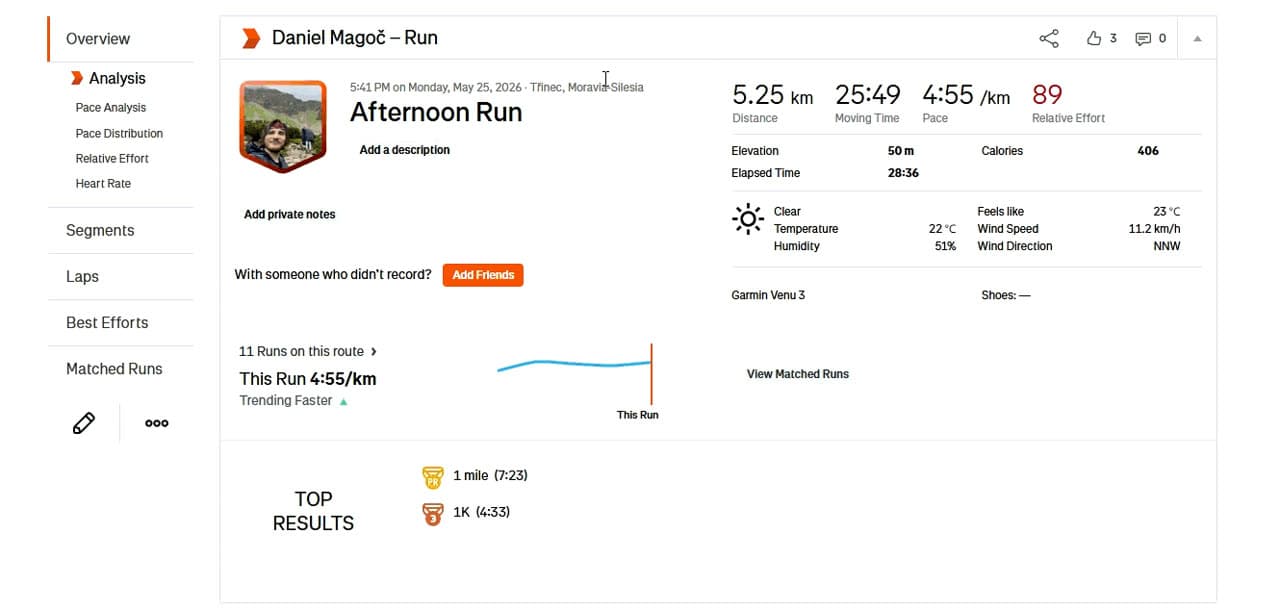
Garmin watches send every activity to Garmin Connect. From there you can download the route as a GPX file, using the website on a computer. The Garmin Connect mobile app has no GPX export.
Step by step
- Open connect.garmin.com and log in.
- In the Activities list, click the name of the activity you want.
- In the activity detail, click the gear icon at the top right.
- Choose Export to GPX. The file is saved to your Downloads folder.
The file ends in .gpx and you can upload it on the create page right away.
Things to watch out for
Export to GPX, not Export File
The menu also has Export File. That downloads the original file from your watch, usually a .fit file, sometimes inside a .zip. For a relief, choose Export to GPX.
An activity without a map
If GPS was off, for example on a treadmill or in the gym, the activity has no route and the GPX would be empty. You can tell because the activity detail shows no map.
No computer nearby
Open connect.garmin.com in your phone's browser and switch on Desktop site in the browser menu. The steps are then the same.
Planned routes from Garmin
If you plan routes in Garmin Connect as Courses, you can export them in a similar way: open the course and look for the GPX export in its menu. A planned route works just as well for a relief as a recorded one.
Tip: Does your Garmin sync to Strava? Then you can simply paste the Strava activity link on the create page and skip the download.