How to export a GPX from Komoot
· 1 min read
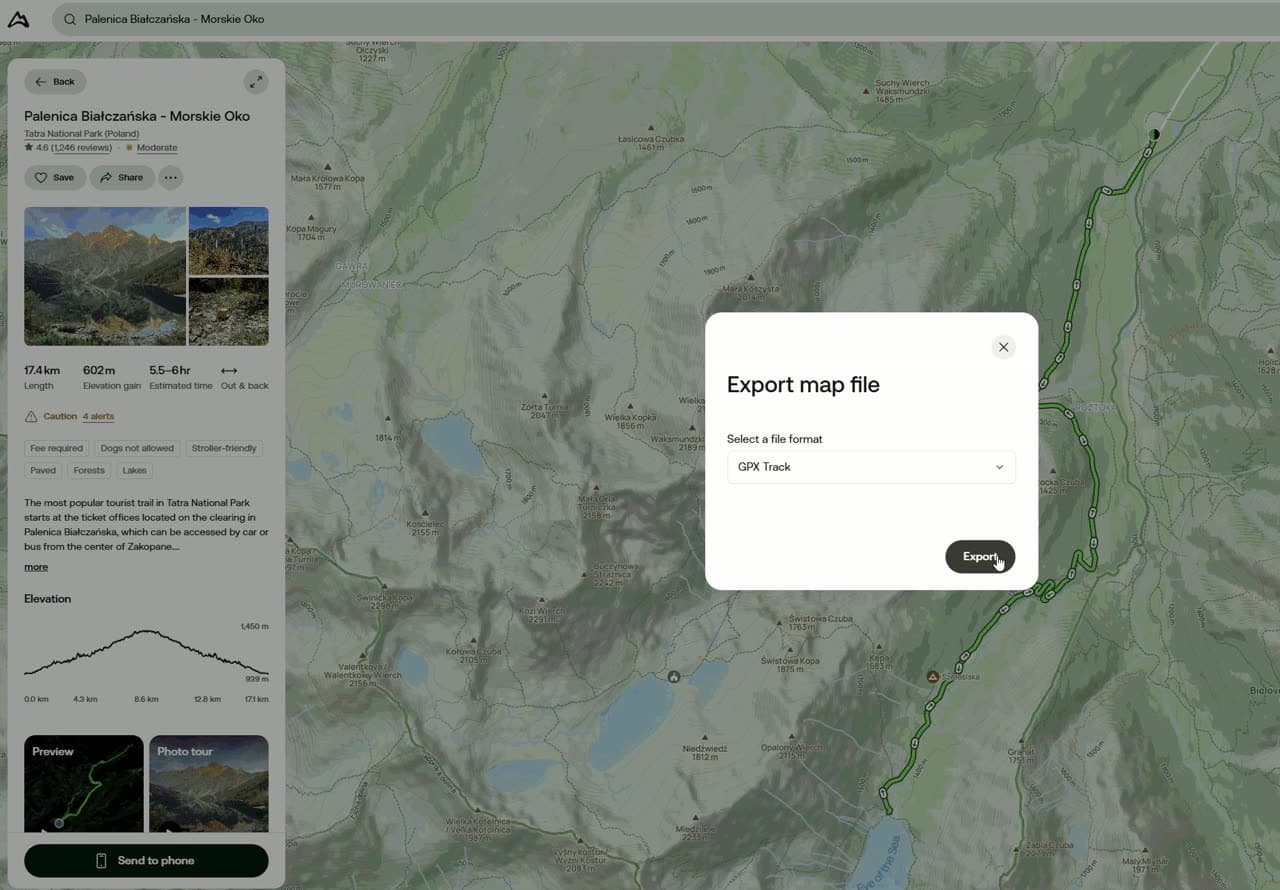
Komoot is popular above all for planning hikes and bike trips. You can download a GPX file from a tour you completed and from one you have only planned. It is easiest on the komoot.com website.
Step by step
- Open komoot.com and log in.
- Open the tour you want. It can be yours or a public tour by someone else.
- Next to the Save, Navigate and Edit route buttons, click the three dots.
- Choose Download GPX.
- In the window that opens, click Download. The file is saved to your Downloads folder.
The file ends in .gpx and you can upload it on the create page right away.
Completed or planned tour?
Komoot keeps two lists: Completed tours are the ones you actually did, Planned tours are the ones you drew in advance. Both work for a relief. A recorded tour follows your exact path including detours, a planned one is smoother.
A gift from someone else's tour
A big plus of Komoot is that you can download the GPX of another user's public tour, as the video shows. If you want to give someone a relief of a route they did and you don't have their recording, find it on Komoot, or draw it there yourself as a new tour and download that.
Tip: The download window also offers to connect a device. Ignore it, you don't need to connect a Garmin or anything else to export the file.